Download your Data
Below are guides on where to download your genomic data files from common sequencing providers. If you have any issues please feel free to contact us.
More guides coming soon.
23andMe
23andMe can provide two useful downloads: your original raw genotype ZIP and the larger imputed genotype data ZIP. Request both so BioVault has the best available data for current and future assays. Use the larger imputed_genotype_data_r6 file where possible.
Requesting Your Data
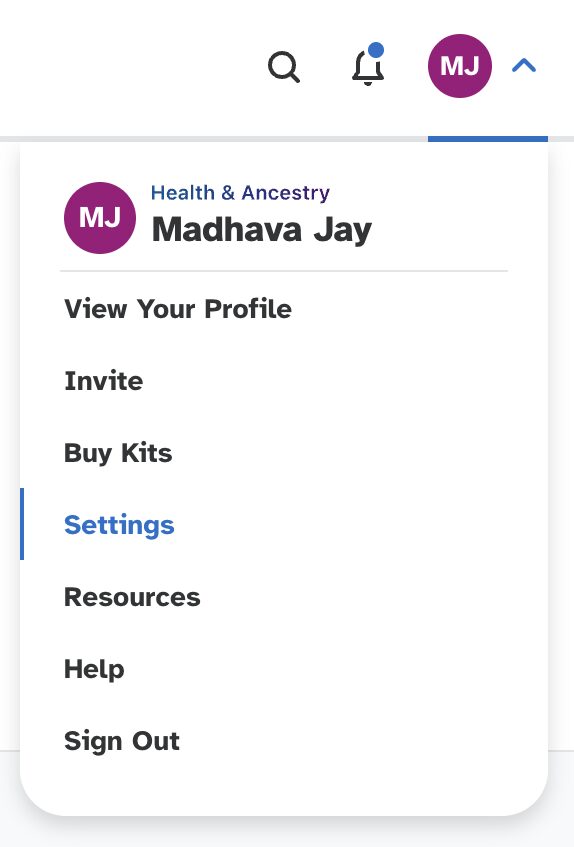
Open account settings
Sign in to 23andMe, open the profile menu, and choose Settings.
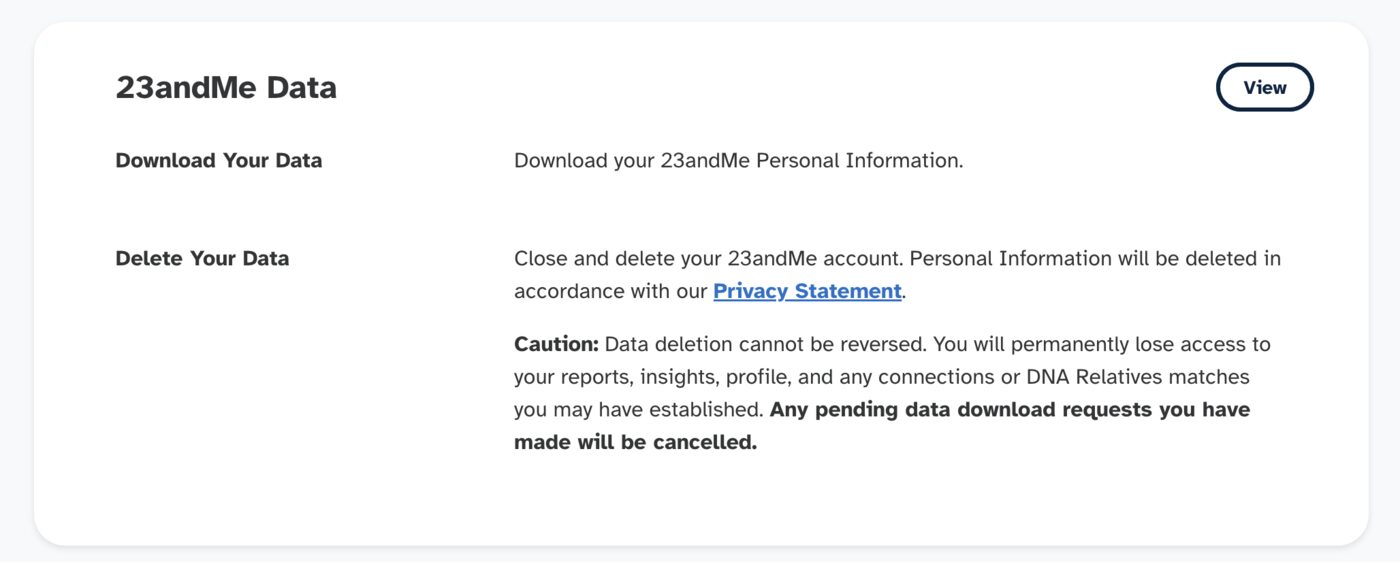
Find your data access page
Scroll to the data section and choose the option to view or download your 23andMe data.
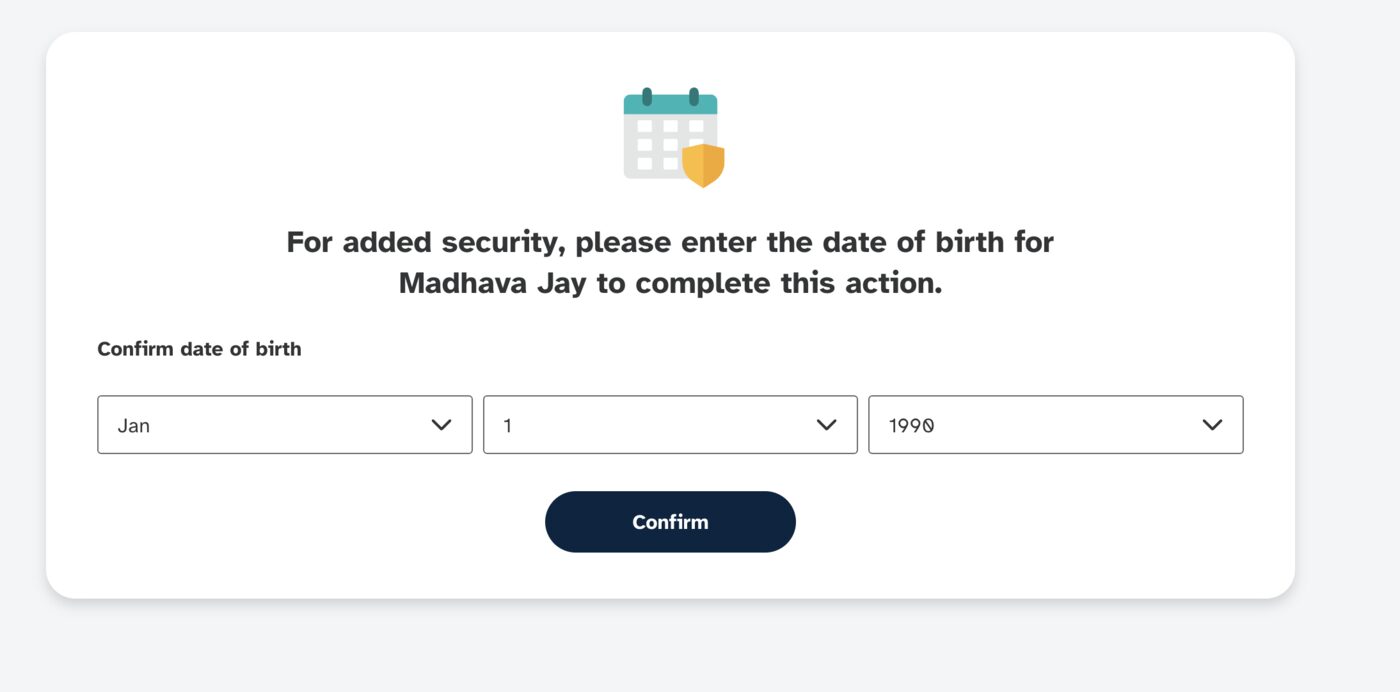
Verify your identity
23andMe may ask for your date of birth or another account check before showing download controls.
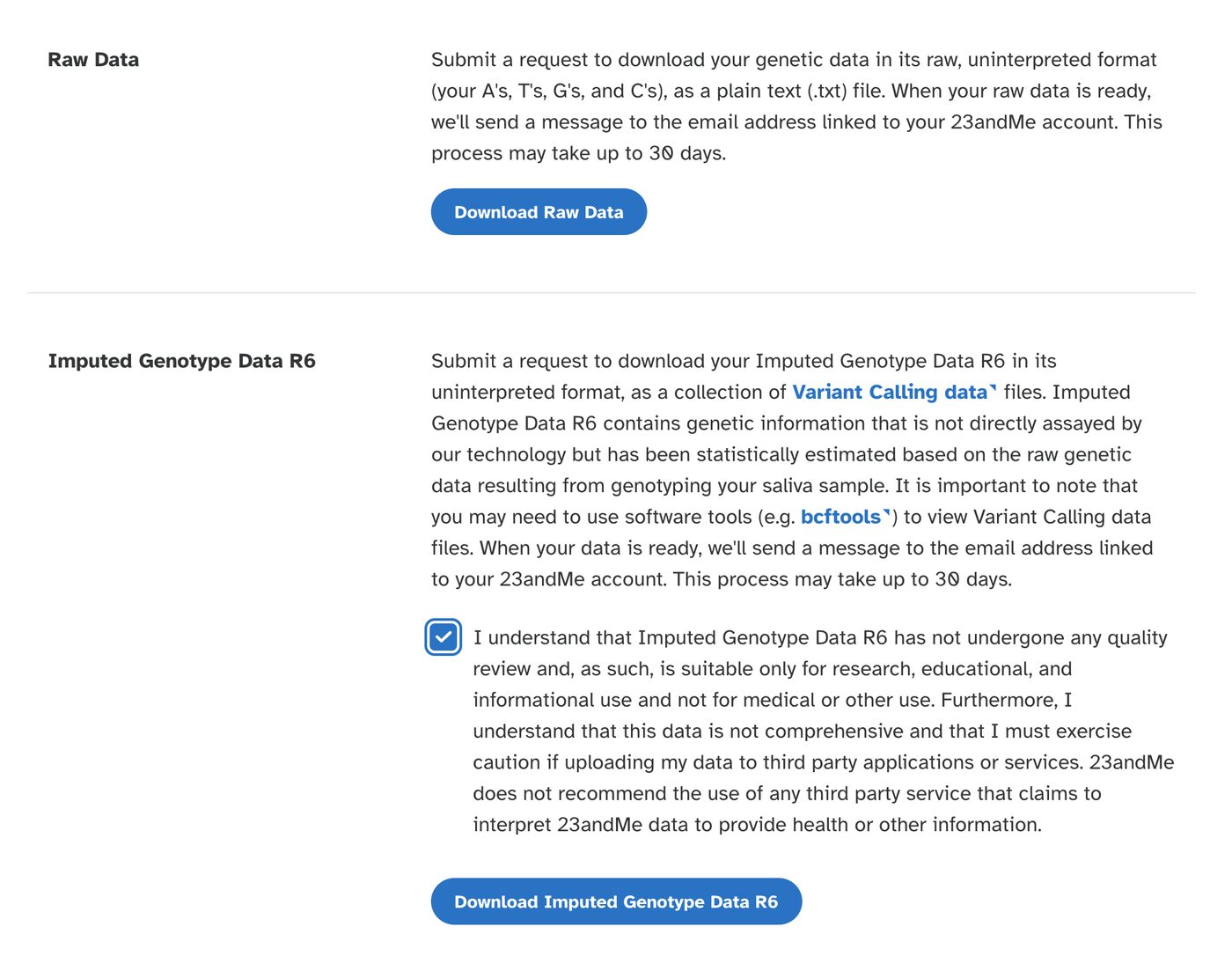
Request both files
Request Raw Data and Imputed Genotype Data R6. The raw data is smaller and directly assayed; the imputed data is much larger and may support more research workflows.
Wait for the email
23andMe prepares the downloads asynchronously. Wait for the email telling you the files are ready, then return to the download page.
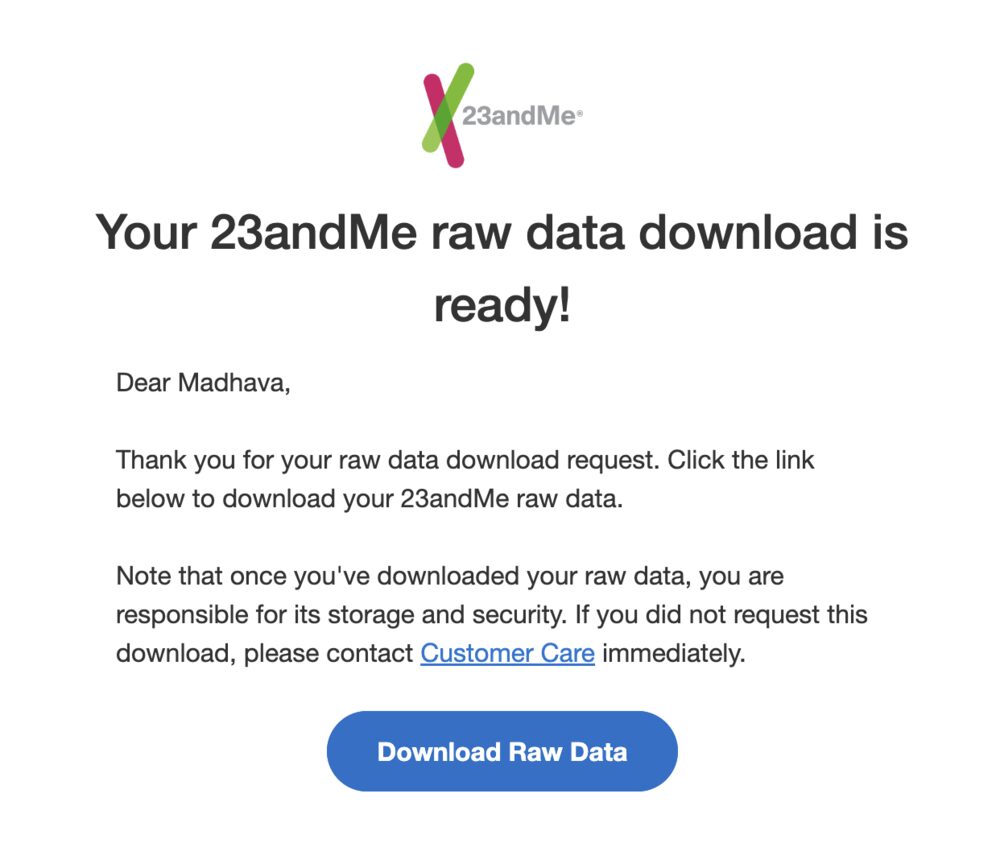
Downloading Your Data
Download both ZIP files
Save both the original genome ZIP and the imputed genotype ZIP. Keep them zipped; BioVault can inspect ZIP files directly. Use the larger imputed_genotype_data_r6 ZIP where possible.

Move files to the device running BioVault
If the files are on another device, transfer them first. AirDrop, iCloud Drive, a USB cable, or another file transfer mechanism is fine.
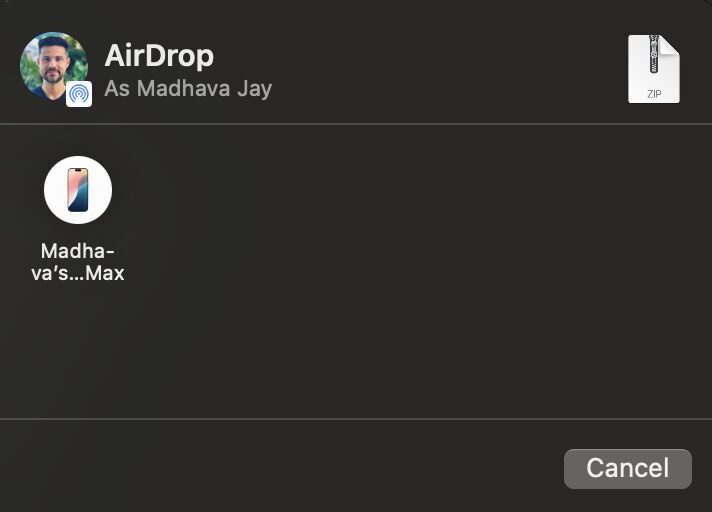
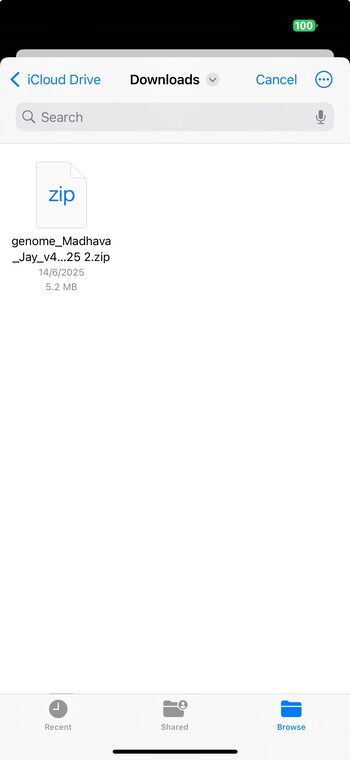
Optional: locate the ZIP on mobile
If you are using BioVault on iPhone or iPad, you will need to locate the downloaded ZIP in the iOS Files app when BioVault asks for genome data.
Sequencing.com
Sequencing.com whole genome data is useful for BioVault when you download standard raw genome files. Start with VCF or VCF.GZ files for variant-based assays. BAM files are larger and useful for advanced workflows when paired with their index files.
Sign in and open your genome files
Sign in to Sequencing.com and open the area for your completed genome data, raw data, or downloadable genome files.
Download VCF first
Download a genome VCF or VCF.GZ file if it is available. If Sequencing.com also provides a .tbi index next to the VCF.GZ, download that companion file too.
Download BAM only when needed
For assays that need read-level alignment data, download BAM and its BAI index if available. FASTQ files are usually very large and are not the first choice for BioVault assay imports.
Import the files into BioVault
Open BioVault, choose Import genome, and select the downloaded VCF/VCF.GZ first. Add companion index files when you have them.
Screenshots for Sequencing.com are coming next. Until then, use the provider's download area and prefer standard genomics files such as VCF, VCF.GZ, BAM, and their indexes.
Import Into BioVault
- Open BioVault and choose Import genome.
- Drop your downloaded ZIP, VCF, VCF.GZ, BAM, CRAM, or companion files into the import dialog, or click to choose them from your device.
- Keep the files private and local unless you intentionally paste a remote URL.
- Confirm the detected files, then run a compatible assay.
Supported File Types
- Local file imports are processed in your browser to run assays.
- Remote URLs are fetched only when you paste or select them.
- You can clear BioVault browser storage from the app settings.